20 Lesson 20: Backup / Logical Backup
This page is extracted from the official PDF into native Markdown. Slide text, code and speaker notes are kept in reading order; the original PDF and HTML remain the layout references. HTML source: dev1_20_backup_logical.html Archive: DEV1-handouts-16-en.zip PDF pages: 24
Page 1: Backup / Logical Backup
Copyright
© Postgres Professional, 2017–2025 Authors: Egor Rogov, Pavel Luzanov, Ilya Bashtanov, Igor Gnatyuk Translated by: Liudmila Mantrova, Alexander Meleshko, Elena Sharafutdinova Photo by: Oleg Bartunov (Phu monastery, Bhrikuti summit, Nepal)
Use of Course Materials
Non-commercial use of course materials (presentations, demonstrations) is allowed without restrictions. Commercial use is possible only with the written permission of Postgres Professional. It is prohibited to make changes to the course materials.
Feedback
Please send your feedback, comments and suggestions to: edu@postgrespro.ru
Disclaimer
Postgres Professional assumes no responsibility for any damages and losses, including loss of income, caused by direct or indirect, intentional or accidental use of course materials. Postgres Professional company specifically disclaims any warranties on course materials. Course materials are provided “as is,” and Postgres Professional company has no obligations to provide maintenance, support, updates, enhancements, or modifications.
Page 2: Topics
- Logical and Physical Backup
- Backup and Restore of a Table
- Backup and Restore of a Database
- Backup and Restore of the Whole Cluster
Page 3: Logical Backup
SQL commands to create objects and fill them with data
- backup of a particular object or a database
- restore to a different architecture or PostgreSQL version
- (binary compatibility is not required)
- ease of use
- − modest operation speed
- − no point-in-time recovery
Speaker notes
A logical backup is a set of SQL commands that can restore the database cluster (or a particular database or table) from scratch: it creates all the required objects and fills them with data.
These commands can be run on a different server version (if it provides compatibility at the command level) or on a different platform or architecture (binary compatibility is not required).
In particular, a logical backup can be used for long-term storage: you can restore it even after upgrading the server to a higher version.
The process of creating a logical backup is relatively easy. It is usually enough to run a single command or launch a single utility.
But for large databases, the execution of these commands can take a very long time. Using a logical backup, you can restore your database system only to its state exactly to the point in time when the backup process was initiated.
https://postgrespro.com/docs/postgresql/16/backup-dump
Page 4: Physical Backup
A copy of the database cluster’s file system
- faster than logical backup
- statistics are restored
- − restore is only possible on a compatible system, with the same PostgreSQL
- major version installed
- − partial backup is impossible, the whole cluster is copied
- WAL archive
- point-in-time recovery is available
Speaker notes
A physical backup implies creating a copy of all files related to the database cluster: in other words, creating its full binary copy.
It is faster to copy files than dump SQL commands; besides, unlike restoring a logical backup, starting a server using a physical copy is a matter of several minutes. Another advantage is that you do not have to rebuild statistical data: it is also restored from the physical copy.
But this approach has its own shortcomings. A physical backup can be used to restore the system only on a compatible platform (that has the same OS, architecture, etc.) with the same major PostgreSQL version installed. Besides, it is impossible to create a physical copy of a specific database: you can only back up the whole database cluster.
Physical backups are usually used together with WAL archives. It enables system recovery not only at the time of backup creation, but also at an arbitrary point in time.
https://postgrespro.com/docs/postgresql/16/backup-file
https://postgrespro.com/docs/postgresql/16/continuous-archiving
Creating physical backups for any important production systems is a common practice. It is the responsibility of a DBA to take such backups.
Page 5: Making a Table Copy in SQL
 {#source-figure-005 caption=“Source slide page 5: Making a Table Copy in SQL”}
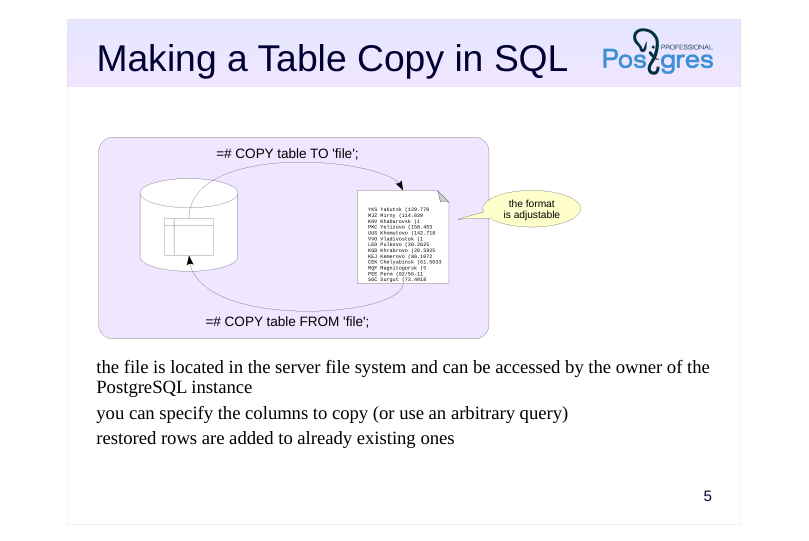
- the file is located in the server file system and can be accessed by the owner of the PostgreSQL instance you can specify the columns to copy (or use an arbitrary query) restored rows are added to already existing ones
Speaker notes
If you want to save only the contents of one table, you can use the COPY command.
The COPY TO flavor of this command enables you to save the table (or some of its columns, or even the result of an arbitrary query) into a file, display it in the terminal, or provide it as input to an application. You can specify parameters such as format (plain text, CSV or binary), field separators, NULL representation, and more.
The alternative variant of the COPY command reads fields from a file or the console and inserts them into a table. The table isn’t cleared, the new rows are simply appended to the existing ones.
The COPY command is significantly faster than similar INSERT commands, because the client does not need to access the server repeatedly, and the server does not have to analyze the commands multiple times.
Notably, the COPY FROM command ignores the defined rules, although integrity constraints and triggers are respected.
https://postgrespro.com/docs/postgresql/16/sql-copy
Page 6: Making a Table Copy in psql
 {#source-figure-006 caption=“Source slide page 6: Making a Table Copy in psql”}
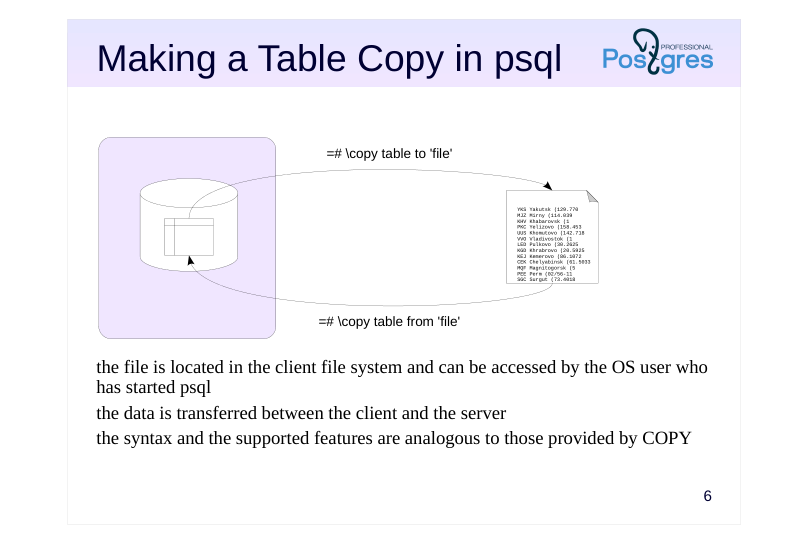
- the file is located in the client file system and can be accessed by the OS user who has started psql the data is transferred between the client and the server the syntax and the supported features are analogous to those provided by COPY
Speaker notes
In psql, there is a client version of the COPY command with a similar syntax.
The file name in the SQL command corresponds to a file on the database server. The user running PostgreSQL (usually postgres) must have access to this file.
The client implementation of this command refers to the file located on the client, which allows keeping a local copy of data even if there is no access to the server file system. The table contents is automatically transferred between the client and the server.
https://postgrespro.com/docs/postgresql/16/app-psql
Page 7: The COPY Command
Create a database and a table.
This is what the COPY command shows (output to the console, not to a file):
You can see how empty rows are different from the NULL values. The output format can be configured quite flexibly. You can change the separator, the NULL display, add a line with column names, etc. For example:
Note Note that the inline separator character has been escaped (the escape character is also configurable). Instead of a table, you can specify an arbitrary query.
This way, you can save query results, presentation data, etc. The command can work with CSV, a popular format supported by many programs.
Input from file or console works in a similar manner. For input from console, the end of file marker (a backslash and a period) is required. For input from file, it is there implicitly. All input parameters must match those specified during output.
Page 8: Page 8
If the input contains a header row with column names, those can be verified against the target table column names.
A mismatch throws an error:
Another attempt to add a row to the table:
This error occurred because the last COPY command, while successful, did not advance the value of the sequence serving the id column. This is easily fixed:
Here are the table contents (with NULL output configured in psql for clarity):
Page 9: Database Backup
 {#source-figure-009 caption=“Source slide page 9: Database Backup”}
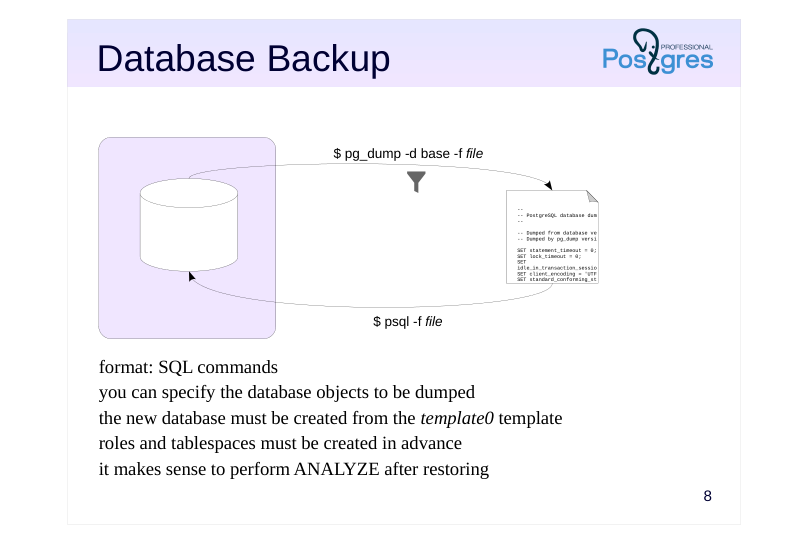
- format: SQL commands you can specify the database objects to be dumped the new database must be created from the template0 template roles and tablespaces must be created in advance it makes sense to perform ANALYZE after restoring
Speaker notes
The pg_dump utility creates a full-scale database backup.
If you omit the file name (-f, –file), the utility’s output will be displayed in the terminal. The produced output is a script to be run in psql; it contains the commands that will create the required objects and fill them with data.
You can use optional parameters to limit the set of backed up objects: for example, you can choose to back up only particular tables, objects in particular schemas, or use other filters.
To restore the objects from the backup, just run the generated script in psql.
Note that the database to be restored should be cloned from template0, since all the changes made to template1 will also make it into the backup.
Besides, all the required roles and tablespaces must be set up in advance. Since these objects do not belong to any particular database, they won’t be included into the dump.
Once the database is restored, it makes sense to run the ANALYZE command: it will collect statistics that the optimizer requires for query planning.
https://postgrespro.com/docs/postgresql/16/app-pgdump
Page 10: The custom Format
 {#source-figure-010 caption=“Source slide page 10: The custom Format”}
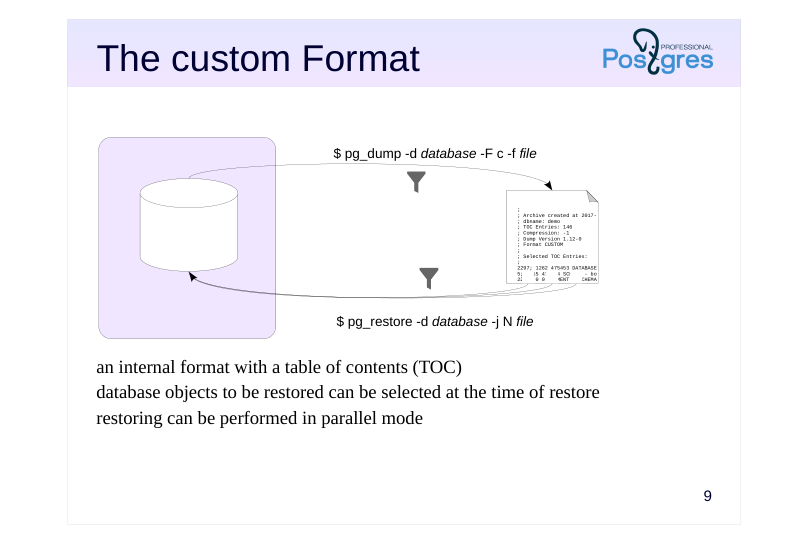
- an internal format with a table of contents (TOC) database objects to be restored can be selected at the time of restore restoring can be performed in parallel mode
Speaker notes
The pg_dump utility allows you to specify the backup format. By default, the plain format is used; it provides pure psql commands.
The custom format (-F c, –format=custom) creates a backup in a special format that contains not only the backed up objects, but also a table of contents (TOC). Having a TOC allows you to choose the objects right at the time of restore, not while making the dump.
By default, the output of the custom format is compressed.
To restore the database, you need to run another utility: pg_restore. It reads the file and converts it to psql commands. If you do not explicitly provide the database name (with the -d option), all commands will be output to the terminal. If the database is specified, pg_restore will connect to this database and execute the commands; you won’t have to start psql.
To restore only some of the objects, you can use one of the following approaches. The first one is to filter the objects to be restored, just like it is done in pg_dump. In fact, pg_restore shares many parameters with pg_dump.
The second option is to use the TOC to retrieve the list of objects included into the backup (via the –list option). Then you can edit this list manually: delete the objects you do not need and pass the modified list to pg_restore (via the –use-list option).
https://postgrespro.com/docs/postgresql/16/app-pgrestore.html
Page 11: The directory Format
 {#source-figure-011 caption=“Source slide page 11: The directory Format”}
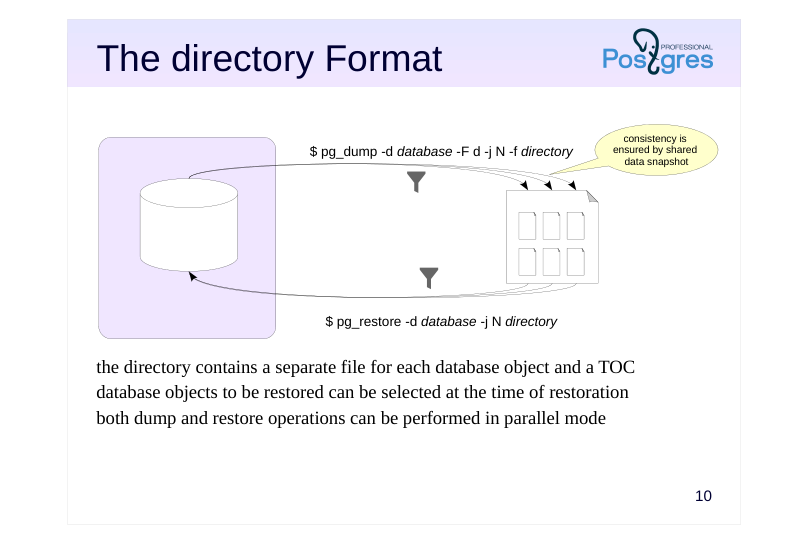
the directory contains a separate file for each database object and a TOC database objects to be restored can be selected at the time of restoration both dump and restore operations can be performed in parallel mode
Speaker notes
You can also create backups in the directory format. In this case, pg_dump produces a whole directory instead of a single file; it contains the backed up objects and the table of contents. By default, all files in the directory are compressed.
Its advantage over the custom format is that such a backup can be created concurrently using several processes (the number of processes is specified in option -j, –jobs).
Naturally, the backup will contain consistent data even though it has been created concurrently. Consistency is ensured by using a single data snapshot for all the parallel processes.
https://postgrespro.com/docs/postgresql/16/functions-admin.html#FUNCTIO NS-SNAPSHOT-SYNCHRONIZATION
Data restoration can also be performed in parallel mode (it is also supported for the custom format).
Other capabilities are quite similar to those provided by the previously discussed formats: the directory format supports the same options and approaches.
Page 12: Format Comparison
plain custom directory tar
- restoration utility psql pg_restore
- compression zlib
- partial restore yes yes yes
- parallel backup yes
- parallel restore yes yes
Speaker notes
This slide compares different features provided by different backup formats.
Note that there is also one more format available: tar. We do not cover it here as it does not bring anything new and has no advantages as compared to other formats. In fact, this format is simply a version of the directory format in a tar archive, but it does not support compression or parallel execution.
Page 13: pg_dump Utility
pg_dump, ran without additional parameters, issues SQL commands that create all objects in the database:
Page 14: Page 14
 {#source-figure-014 caption=“Source slide page 14: Page 14”}
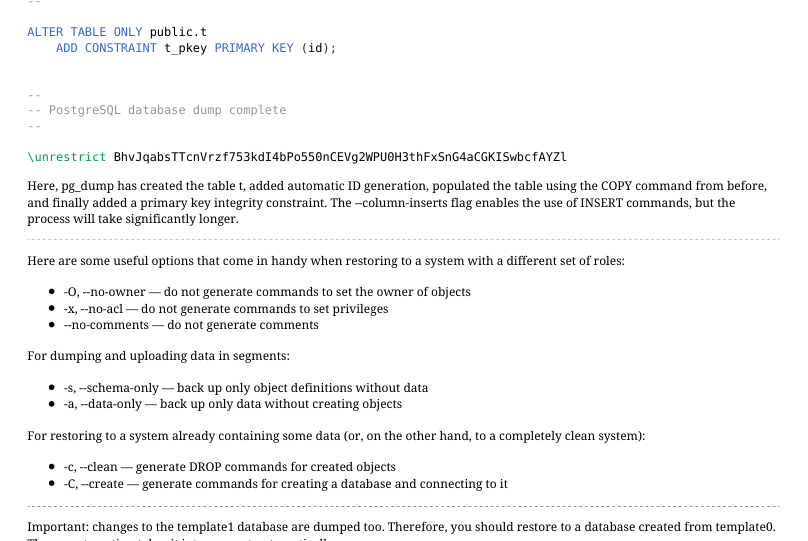
Here, pg_dump has created the table t, added automatic ID generation, populated the table using the COPY command from before, and finally added a primary key integrity constraint. The –column-inserts flag enables the use of INSERT commands, but the process will take significantly longer. Here are some useful options that come in handy when restoring to a system with a different set of roles: -O, –no-owner — do not generate commands to set the owner of objects -x, –no-acl — do not generate commands to set privileges –no-comments — do not generate comments For dumping and uploading data in segments: -s, –schema-only — back up only object definitions without data -a, –data-only — back up only data without creating objects For restoring to a system already containing some data (or, on the other hand, to a completely clean system): -c, –clean — generate DROP commands for created objects -C, –create — generate commands for creating a database and connecting to it
Important: changes to the template1 database are dumped too. Therefore, you should restore to a database created from template0. The –create option takes it into account automatically:
No command to create the public schema is generated, but if its permissions or owner were changed at some point, corresponding commands will appear in pg_dump output:
Some options specify the objects to be dumped: -n, –schema — template for schema names -t, –table — template for table names Or, conversely, not to be, while dumping everything else: -N, –exclude-schema — template for schema names -T, –exclude-table — template for table names For example, restore the table t to another database.
Page 15: Page 15
Connect to backup_logical_dev_2 and verify:
pg\_dump: custom Format
The plain format has a serious limitation: you have to specify all the objects you will need in your backup before making the dump. The custom format allows you to make a full dump first, then specify which objects to restore from it later.
This is done with the pg_restore tool. Time to restore t again.
pg_restore will recognize the dump format automatically, there is no need to specify it. pg_restore also understands all the flags that pg_dump does, and more: -I, –index — restore specific indexes -P, –function — restore certain functions -T, –trigger — restore specific triggers
Another example: restore the entire original backup_logical_dev_1.
-d lets us select any existing database, –create creates the database specified in the dump and connects to it.
Page 16: Page 16
Let’s try:
A plain backup can be modified in any text editor, if necessary. A custom backup is binary, but it still supports wider filtering capabilities, in addition to the previously mentioned flags. pg_restore can generate a list of objects, the table of contents of the backup:
You can save it to a file, adjust it, and then use it during restore (–use-list).
pg\_dump: directory Format
The directory format, notably, supports dumping in parallel. Consistency is guaranteed: all processes use the same snapshot.
Take a look inside the directory:
There is a table of contents file, and a file for each dumped object (we have only one):
Let’s restore backup_logical_dev_1 database from backup in two streams. The –clean option generates a command to remove the existing database, since backup_logical_dev_1 already exists. We also need to disconnect from backup_logical_dev_1:
Page 17: Page 17
Page 18: Cluster Backup
 {#source-figure-018 caption=“Source slide page 18: Cluster Backup”}
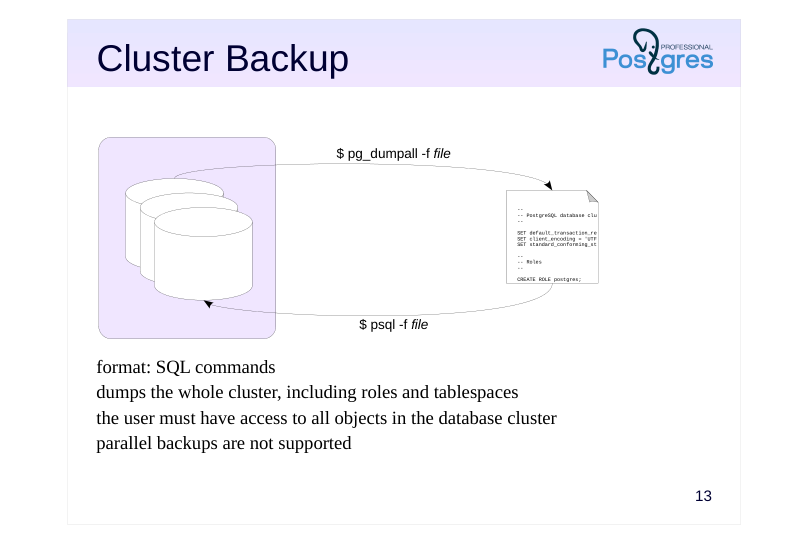
- format: SQL commands dumps the whole cluster, including roles and tablespaces the user must have access to all objects in the database cluster parallel backups are not supported
Speaker notes
pg_dumpall creates a backup of the entire cluster, including roles and tablespaces.
Since pg_dumpall requires access to all objects of all databases, it should be run by a superuser or a user with the pre-defined role pg_read_all_data. pg_dumpall connects to each database in the cluster one by one and backups them using pg_dump. In addition, it also stores data related to the cluster as a whole.
To start this process, pg_dumpall has to establish a connection with any available database. By default, postgres or template1 is selected, but you can specify another one.
The result of pg_dumpall is a script for psql. Other formats are not supported. This means that pg_dumpall does not support parallel execution, which can be a problem for larger clusters. In this case, you can use the –globals-only option to dump only roles and tablespaces, and dump the databases separately using pg_dump in parallel mode.
https://postgrespro.com/docs/postgresql/16/app-pg-dumpall
Page 19: pg_dumpall Utility
The pg_dump utility is good for dumping a single database, but it never dumps shared database cluster objects such as roles and tablespaces. To create a full cluster backup, you need to use pg_dumpall. All these tools do not require any specific privileges, but the role executing them must be allowed to read (create) all affected objects. For example, pg_dump can be used by the database owner. But, since pg_dumpall needs access to all databases, we will use a superuser role.
A cluster backup includes some additional commands:
Restoring is done via psql, there is no other way around it. The command to restore (we will not run it):
During restoring, errors related to objects already existing may come up. These are normal and do not affect the restoration, but it is a good practice to keep an eye on all error messages nevertheless.
Page 20: Takeaways
You can make a logical backup of a whole cluster, a specific database or specific database objects
- Good for
- small amounts of data
- long-term storage during which the server can been upgraded
- migration to a different platform
- Not so good for
- crash recovery with minimal data loss
Page 21: Practice
- As an employee, back up the bookstore database in the custom format.
- “Accidentally” empty the authorship table. Check that the
- application has stopped displaying book titles in Bookstore,
- Books, and Catalog tabs.
- Use the backup to restore the lost data.
- Verify that normal operation of the bookstore is restored.
Speaker notes
- Include the user into the pre-defined role pg_read_all_data. Use the –data-only option for the restore operation, as an attempt to create the table will result in an error.
Page 22: 1. Restoring the Lost Data
Include the employee user into pg_read_all_data pre-defined role and create logical backup on their behalf:
Delete the rows:
The employee user would be unable to restore because they lack the privilege to insert rows into the table, hence we do it as student:
Page 23: Practice+
- The psql \copy command lets you pass the output as input to an arbitrary application. Use this capability to open the result of some query in LibreOffice Calc.
Speaker notes
- The command must save the result into a file and then start libreoffice with this file passed as a parameter. The file must be saved in the CSV format.
Naturally, this approach is platform-dependent and will require modifications, say, on Windows.
Page 24: 1. Open Query Results in LibreOffice
Create the table.
Dump the table contents into CSV file:
If we use COPY SQL command instead of \copy, the utility runs on the server, it would be incorrect. Opening /home/student/t.csv…